
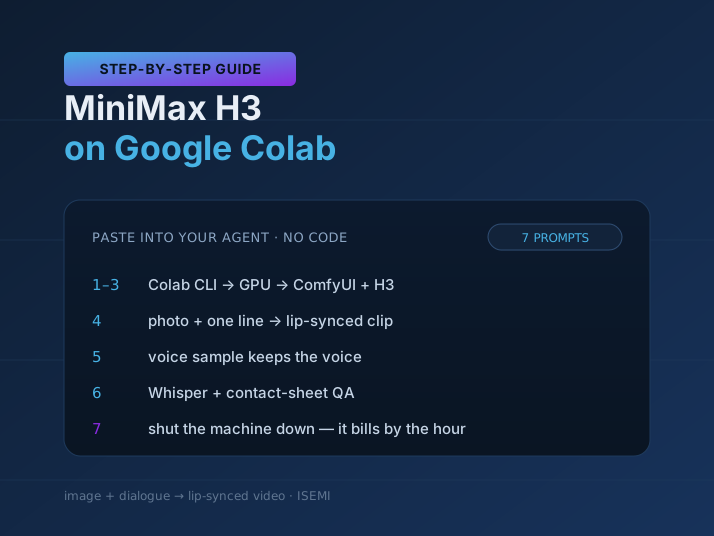
You want a short clip where a character says one exact line, lips in sync, with ambient sound underneath, and all you have is a single still image. MiniMax H3 does exactly that: give it a first frame and a line of dialogue, and it renders the video and the audio together. The catch is hardware. Even the lightweight build puts about 42 GB of model files on disk and wants a data-center GPU, which few of us keep under the desk.
Google Colab rents one by the hour. This guide runs MiniMax H3 there without you writing any code. Every step is a prompt you paste into a coding agent running on your own machine (Claude Code, for example). The agent installs the tools, runs the job and reports back. The timings and test results below come from our own runs of this exact sequence.
What you need before you start
| What | Notes |
|---|---|
| A Google account with Colab compute units (CU) | Google AI Pro includes 500 CU, Google AI Ultra x5 1,000 CU and Google AI Ultra x20 2,000 CU (Colab Pro/Pro+ also come with CU). Check your balance at colab.research.google.com, under Usage. |
| A Mac or Linux machine with a coding agent (e.g. Claude Code) | The agent installs the Colab command-line tool itself. |
| A first-frame image for the scene | A clear-faced 9:16 portrait, or a 16:9 landscape. |
| (Optional) A voice sample for each character | An 8–10 second .wav, clearly spoken, in the role's voice. Used in step 5 to keep the voice consistent. |
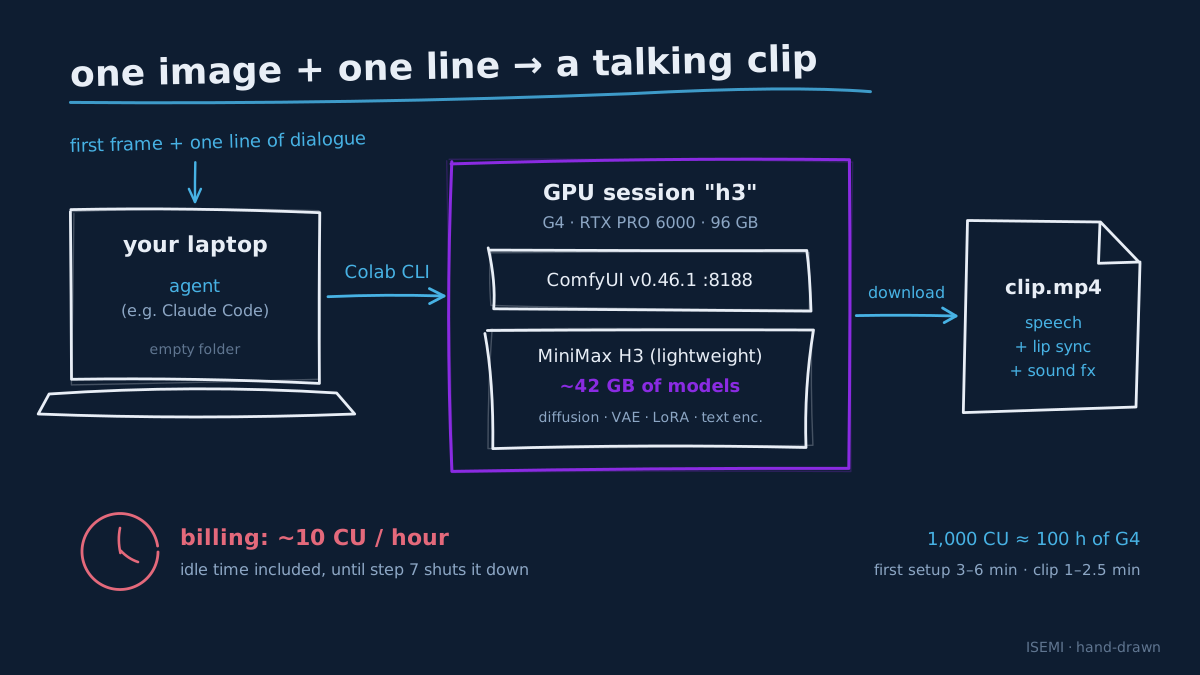
Cost and time, measured on a G4 machine (RTX PRO 6000, 96 GB):
| Item | Figure |
|---|---|
| Machine rental | ~10 CU per hour, idle time included |
| First-time setup | 3–6 minutes |
| Standard clip, 6–8 seconds | 1–2.5 minutes |
| Clip with a voice sample, 6.6 seconds | ~4.5 minutes |
How many clips each plan's compute units buy, at ~10 CU per hour of G4:
| Plan | G4 time | Standard clips, 6–8 s | Clips with a voice sample |
|---|---|---|---|
| Google AI Pro (500 CU) | ~50 hours | ~1,200–3,000 | ~660 |
| Google AI Ultra x5 (1,000 CU) | ~100 hours | ~2,400–6,000 | ~1,330 |
| Google AI Ultra x20 (2,000 CU) | ~200 hours | ~4,800–12,000 | ~2,660 |
These are ceilings that count render time only. Setup (3–6 minutes each time you start a machine), idle time, re-rolls with a new seed and the QA step all draw on the same balance, so the real count comes in lower.
How to use this guide
- Open your agent in an empty working folder.
- Paste the prompts one at a time, in order. Wait until the agent says it is done and the result matches the "Expected result" line before you move on.
- If the agent reports an error, paste the full error back to that same agent and ask it to fix it. Most errors already have a known fix in the troubleshooting table below.
- When you finish, shut the machine down (step 7). A GPU session bills for every hour it is on, including the hours it spends doing nothing.
Square brackets in a prompt mark the parts you fill in.
Steps 1–3: install the tools, rent a GPU, install MiniMax H3
Step 1: install the Colab CLI and sign in
Install Google Colab's official command-line tool (github.com/googlecolab/google-colab-cli, package "google-colab-cli") with uv tool, then run the login command. When the CLI prints a sign-in link, give that link to me so I can open it in my browser and paste the verification code back. After signing in, run the command that shows the compute-unit balance and tell me the number.
Expected result: the agent reports your balance, for example "Current balance: 1000.00 compute units".
Step 2: rent a GPU machine
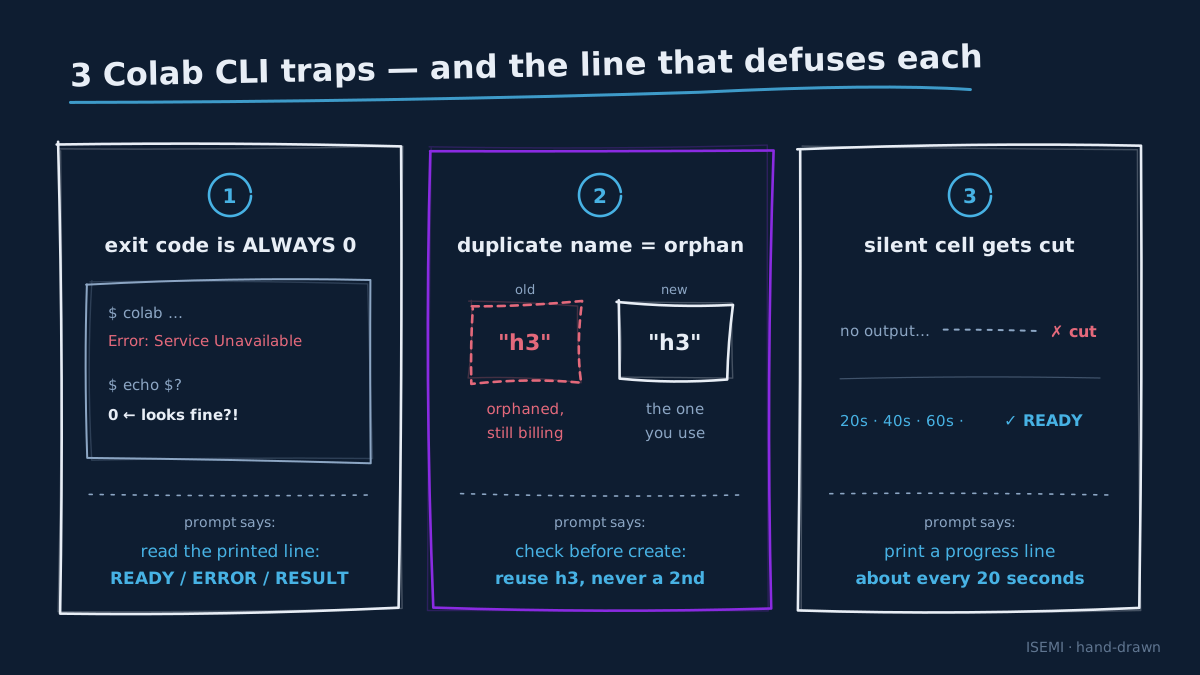
Use the Colab CLI to create a GPU session named "h3". Try G4 first; if Colab says it is out of machines (Service Unavailable), try H100. BEFORE creating it, check whether a session named "h3" already exists. If it does, reuse it. Never create a second session with the same name (a duplicate orphans the old machine, and the old machine keeps billing). Note: the CLI always returns exit code 0, even on errors, so read what it prints to decide whether it succeeded. Tell me which GPU you got.
Expected result: "Session READY" and the GPU name, for example G4.
Step 3: install ComfyUI and download the lightweight H3 model
On the Colab session "h3", prepare the machine to run the lightweight MiniMax H3 build with ComfyUI:
1. Install ComfyUI at exactly tag v0.46.1 (this version ships the MiniMax H3 nodes) and install its dependencies.
2. From the Hugging Face repo "Comfy-Org/MiniMax-H3", download these files into the matching ComfyUI models folders:
   - diffusion_models/minimax_h3_fl2va_pruned_int8_convrot.safetensors
   - vae/minimax_h3_video_vae_int8_convrot.safetensors
   - vae/minimax_h3_audio_vae_fp32.safetensors
   - loras/minimax_h3_fl2v_turbo_8step_v1.0_comfyui_bf16.safetensors
   - the text encoder, chosen by GPU: if the GPU is Blackwell (G4, compute capability 10 or higher), text_encoders/qwen3vl_32b_minimax_h3_nvfp4_awq.safetensors; if it is an H100 or older, text_encoders/qwen3vl_32b_minimax_h3_int8_convrot.safetensors.
3. Start the ComfyUI server on port 8188, fully detached from the cell (its own process, not holding the cell open), then wait until the server responds.
While installing and downloading (this takes a few minutes), print a progress line roughly every 20 seconds, because the Colab CLI cuts off a cell that stays silent for too long. Finish with one clear line: "READY" with the GPU name and the text encoder used, or "ERROR" with the reason. Make this step safe to run again without re-downloading anything that is already there.
Expected result: a READY line, with about 42 GB of model files on the machine.
Some lines in these three prompts look fussy. Each one is there because skipping it caused a real problem. The Colab CLI exits with code 0 whether it worked or not, so an agent that trusts the exit code will happily report success on a failed run. A second session with the same name doesn't replace the first; it orphans it, and the orphan keeps billing. A cell that prints nothing for too long gets cut off mid-download. The prompts handle all three for you.
Step 4: generate a video from an image and a line of dialogue
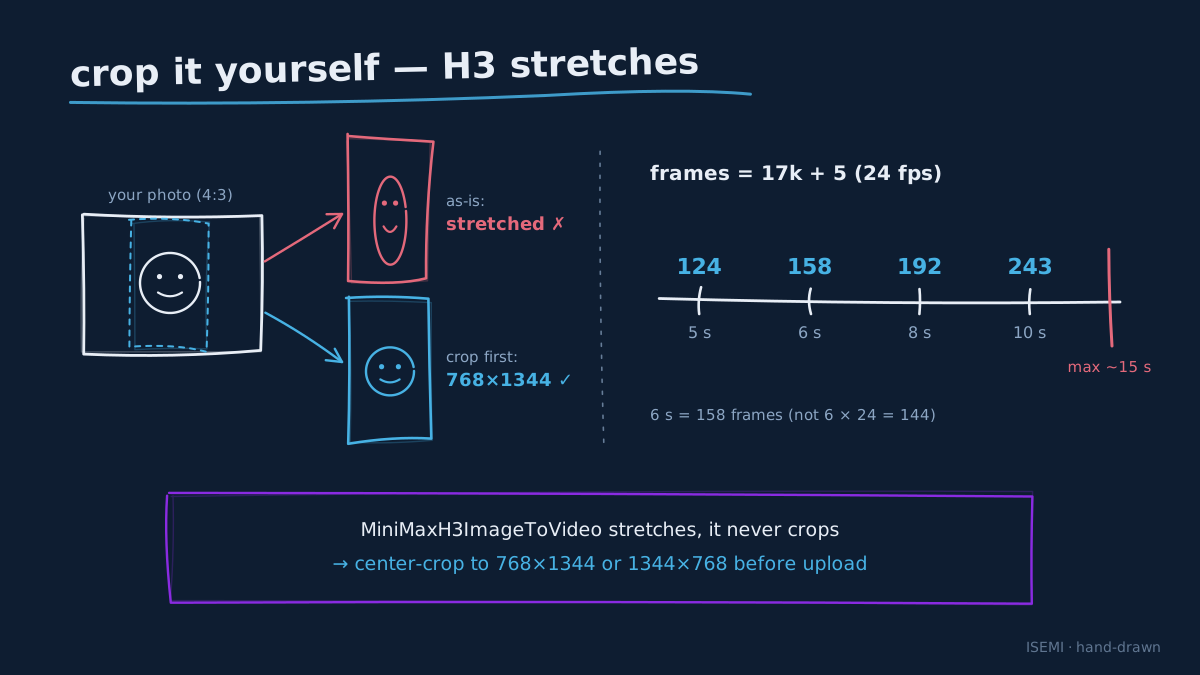
This is where H3 earns its keep: one image plus one line of dialogue becomes a clip with lip-synced speech and sound effects. Two details matter more than the rest. First, crop your image yourself. H3's image-to-video node stretches the input to fit, so a photo with the wrong aspect ratio comes out distorted. Second, the clip length is counted in frames on a fixed grid. H3 runs at 24 frames per second, and the frame count must equal 17k+5:
| Clip length | Frames |
|---|---|
| 5 seconds | 124 |
| 6 seconds | 158 |
| 8 seconds | 192 |
| 10 seconds | 243 |
The maximum is about 15 seconds. The dialogue goes inside H3's own tag, <d>[language] line</d>. All of our test runs were in Vietnamese, so the example keeps [Vietnamese] and a Vietnamese line ("Tôi về rồi." means "I'm home.").
Create a MiniMax H3 image-to-video clip on the session "h3", following Comfy-Org's official template workflow "video_minimax_h3_i2v" (repo workflow_templates), submitted through the ComfyUI API:
- First frame: [path to the image on my machine]. Before uploading, center-crop the image to the right aspect ratio, then scale it to 768×1344 (portrait) or 1344×768 (landscape), because the MiniMaxH3ImageToVideo node STRETCHES the image instead of cropping it.
- Length: [6] seconds. H3 runs at 24 frames per second and the frame count must sit on the 17k+5 grid: 5 seconds = 124 frames, 6 seconds = 158, 8 seconds = 192, 10 seconds = 243, up to about 15 seconds.
- Use the 8-step turbo LoRA, the res_multistep sampler and a random seed.
- Prompt: [describe the scene, the people, the action and the camera, beat by beat in seconds]. Place the line of dialogue inside the action beat with H3's syntax: <d>[Vietnamese] line of dialogue</d>. Example: "1–3.5s: she looks straight ahead and says exactly once: <d>[Vietnamese] Tôi về rồi.</d>". Describe the voice clearly (gender, age, accent, deep or bright) and add "nobody says anything else".
- Do NOT write things like "IMPORTANT — X says EXACTLY the line…": H3 will read the person's name and the extra words aloud too.
Wait for the render to finish, download the mp4 into the current folder and report: duration, resolution, whether it has audio, and render time.
Expected result: an mp4 of exactly the length you set, with lip-synced speech and sound effects. For a different shot, edit the bracketed parts and send the prompt again.
Step 5: keep a character's voice consistent with a voice sample (Ref2VA)
In step 4, H3 invents a voice for every clip, so the same character can sound like several different people across a scene. Ref2VA mode fixes that: H3 listens to a voice sample of the character first, then speaks the line in that voice.
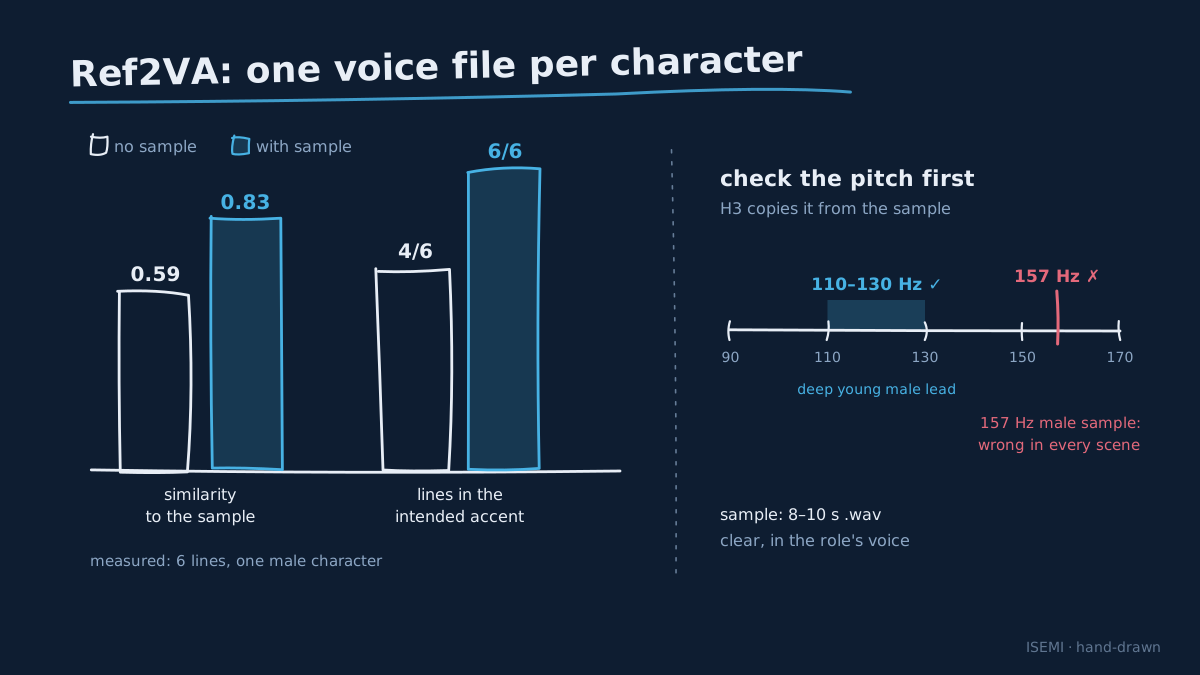
Here is what we measured on six lines spoken by one male character:
| Metric | No voice sample | With voice sample |
|---|---|---|
| Similarity to the sample voice | 0.59 | 0.83 |
| Lines delivered in the intended Northern accent | 4/6 | 6/6 |
Pick the sample carefully. H3 copies the sample's pitch as well as its timbre. Ask the agent to measure the sample's average pitch before you use it. A young male lead with a deep voice usually sits around 110–130 Hz. One male sample at 157 Hz came out sounding too soft and effeminate for the role in every scene.
On the session "h3", add MiniMax H3's Ref2VA mode:
1. Also download from "Comfy-Org/MiniMax-H3": diffusion_models/minimax_h3_ref2va_pruned_int8_convrot.safetensors and loras/minimax_h3_ref2v_turbo_4step_v0.1_comfyui_bf16.safetensors.
2. Build the graph following Comfy-Org's templates "video_minimax_h3_r2v" and "video_minimax_h3_multiframe_reference": the MiniMaxH3ReferenceToVideo node takes the voice sample [path to .wav] as the first ref_audio (<Audio 1>); the first-frame image (cropped to 768×1344 as in step 4) goes into MiniMaxH3AddGuide at frame 0 (<Picture 1>). The sampler's latent comes from MiniMaxH3ReferenceToVideo; AddGuide only adds to the conditioning. Use the ref2v LoRA at 20 steps, scheduler "beta".
3. Write the prompt following the exact structure in MiniMax's official docs (huggingface.co/MiniMaxAI/MiniMax-H3, file docs/VIDEO_PROMPT_WRITING_GUIDE_ref_en.md), with 6 sections in this order: subject_definitions, summary, retention_analysis, detailed_description, overall_soundscape, non_diegetic_music. It must include:
   - "<Subject 1> is [name + appearance of the speaker] in <Picture 1>." and "<Audio 1> is the voice-timbre reference for <Subject 1> (S1)."
   - In detailed_description: "<Subject 1> (S1) says exactly once, in the voice timbre referenced from <Audio 1>: <d>[Vietnamese] line of dialogue</d>"
   - Lock-in sentences: the video starts exactly from <Picture 1>, only people already in <Picture 1> appear, nobody walks in, nobody is duplicated, and the camera moves only when the scene calls for it.
4. Render [6] seconds as in step 4, download the mp4 and report the render time.
Expected result: a lip-synced clip whose voice sounds like the sample. Always give each character their own voice file. Shots without dialogue are rendered as in step 4.
Steps 6–7: check the clips, then shut the machine down
Step 6: check the clips
Check the mp4 files you just downloaded: is the duration right, is there audio? Transcribe the speech (with Whisper, set to the language of the dialogue) and compare it with the line I wrote: was the line spoken in full, exactly ONCE, with no extra words? Make a contact sheet with one frame per second so I can quickly see whether the camera drifted or a stranger appeared. Report the results for each clip as a table.
Step 7: shut the machine down (mandatory)
Terminate the Colab session "h3", then list every session still running to make sure no machine is left on, and report the current compute-unit balance.
Expected result: "Session terminated", no sessions left running, and a balance that has stopped dropping.
Troubleshooting
| Symptom | Cause and fix |
|---|---|
| The agent reports "success" but there is no file | The Colab CLI always returns exit code 0, even on errors. Have the agent always print a clear READY/ERROR/RESULT line and draw its conclusion from that. |
| The balance drops unusually fast | A duplicate session name may have left an old machine running. Have the agent list and terminate every extra session. |
| The cell is cut off mid-install or mid-download | The cell was silent for too long. Remind the agent to print a progress line about every 20 seconds. |
| The cell hangs forever while starting ComfyUI | The server must run as its own detached process, not inside the cell. |
| G4 says it is out of machines | Rent an H100 and use the INT8 text encoder (the NVFP4 build only runs on Blackwell). |
| You can't rent a 4th machine | Colab plans allow roughly 3 GPUs running at the same time. |
| The character reads out their own name, or says the line twice | Use only the <d>[Vietnamese] …</d> tag and write "says exactly once". If the clip is much longer than the line, add "then silent, lips closed". |
| The accent drifts between clips | State the accent in the prompt. Better still, use a voice sample (step 5). |
| A stranger appears, the character is duplicated, or the camera wanders | Add the lock-in sentences from step 5. For a static shot, write "camera stays still". Re-roll with a different seed. |
| The image looks distorted | It wasn't cropped to the right aspect ratio before upload. See step 4. |
| You forgot to shut down | The machine keeps billing. Always run step 7, or have the agent shut the machine down by itself after 10 idle minutes. |
FAQ
How much does it cost to run MiniMax H3 on Google Colab?
A G4 machine costs about 10 compute units per hour, and the meter runs during idle time too. The 500 CU in Google AI Pro is about 50 hours of G4 time: in pure render time, that is roughly 1,200–3,000 standard 6–8 second clips, or about 660 clips with a voice sample. Ultra x5 (1,000 CU) and Ultra x20 (2,000 CU) scale that by two and four. Setup, idle time and re-rolls bring the real number down, and the biggest cost risk is a machine left running after you finish, which is why step 7 is mandatory.
Do I need to know how to code?
No. Each step is a prompt for a coding agent such as Claude Code. The agent installs the tools, writes the ComfyUI API calls and reports the results. Your part is signing in to Colab in a browser and checking each result against the "Expected result" line.
Can I run MiniMax H3 on an H100 instead of a G4?
Yes. Use the INT8 text encoder (qwen3vl_32b_minimax_h3_int8_convrot), because the NVFP4 build only runs on Blackwell GPUs like the G4. The step 2 prompt already falls back to an H100 when no G4 is available, and step 3 picks the matching encoder.
How long can a MiniMax H3 clip be?
Up to about 15 seconds. H3 renders at 24 frames per second, and the frame count must sit on the 17k+5 grid: 124 frames for 5 seconds, 158 for 6, 192 for 8 and 243 for 10.
Why does my character say the line twice, or read out their own name?
It is almost always the prompt. Put the line in H3's dialogue tag, write "says exactly once", and avoid emphatic instructions like "IMPORTANT — X says EXACTLY…", because H3 tends to speak those words aloud. If the clip is much longer than the line, add "then silent, lips closed".
How do I keep the same voice across clips?
Use Ref2VA mode (step 5) with an 8–10 second voice sample per character. In our six-line test, similarity to the sample rose from 0.59 to 0.83, and every line came out in the intended accent. Check the sample's pitch first, because H3 copies it.
From one clip to a pipeline
Rendering one clip at a time is the right way to learn H3's quirks. Once you need dozens of scenes with the same characters and voices, these prompts become a pipeline: shot lists, a voice file per character, automatic QA on every render, and a machine that shuts itself down. That is the kind of system we build. See our AI video and image generation work, or read how we run a whole video pipeline from an agent with Claude Code skills.
Source docs: Comfy-Org/MiniMax-H3 on Hugging Face · MiniMax's Ref2VA prompt-writing guide · ComfyUI template workflows