
E-commerce video creative is repetitive in a very specific way. Same model. Same product. Many scenes. Many short clips. Build that by hand in a generic Veo or Imagen UI and you spend half your time re-uploading the same character reference, re-typing the same fashion-editorial prompt, and squinting at a results gallery trying to remember which 4-variant batch came from which source still.
FLOWBOARD throws away the linear UI and gives you a canvas instead. Two reference nodes feed a composed shot. The composed shot feeds three environment variants. Each environment variant feeds a 4-up batch of videos. The whole campaign lives on one board, every node reusable, every edge a real data dependency.
From two refs to three videos — one canvas, no copy-paste. The video above is the unedited walkthrough; everything else in this post is a deeper read of what the board is actually doing.
Why a canvas instead of a CLI
FLOW KIT, FLOWBOARD's sibling project, is great at one specific job: producing a linear YouTube video from a story, end-to-end, in one CLI session. That structure works because YouTube content is fundamentally a sequence — scene 1, then scene 2, then scene 3, in order.
E-commerce creative is not a sequence. It is a tree, sometimes a DAG. One model, one product, many environments, many camera variants. The natural shape of that workflow is not a script — it is a graph, and the moment you try to express it as a list of CLI calls you start fighting the tool. FLOWBOARD picks the other lane. Same Chrome-extension bridge to Google Flow under the hood, same local-only single-user posture, very different ergonomics. If your output is one video per story, reach for FLOW KIT. If your output is dozens of clips per campaign with shared upstream assets, this is the right tool.
The graph IS the workflow
The clearest way to read a FLOWBOARD board is left-to-right. Refs anchor identity on the left. Composition flows through the middle. Video variants land on the right. The screenshot below is a real export from a working board — two ref nodes (#op4v for the product, #0p1u for the model) feeding three scene compositions, which in turn feed three video nodes with 4-up i2v variant grids.
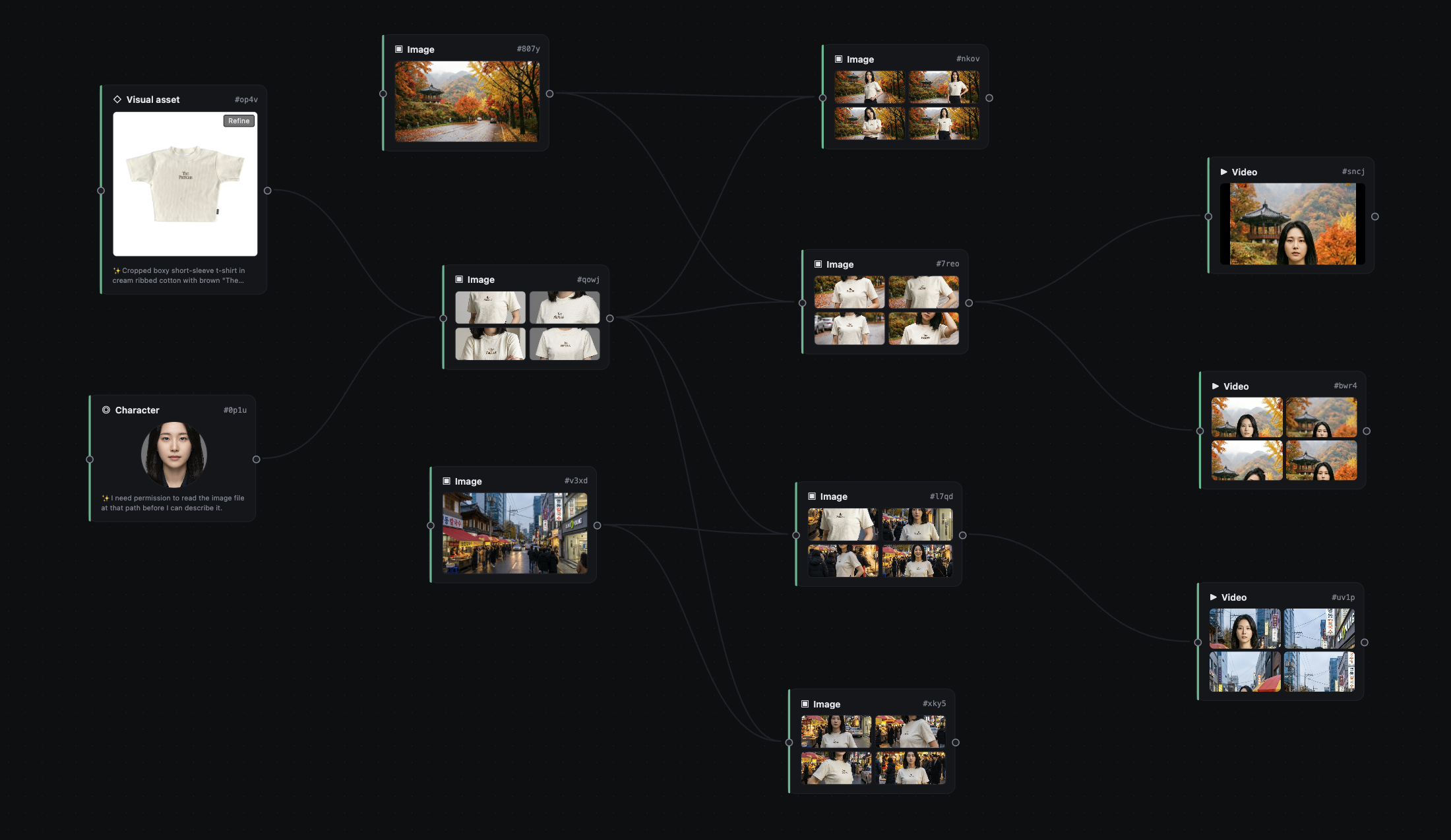
That is the entire campaign on one screen. Re-running a single video does not invalidate anything upstream. Adding a fourth environment is a new image node connected to the same composition. Adjusting the product means swapping the visual-asset node and re-generating downstream — nothing else changes. The canvas is not a metaphor for the workflow. The canvas is the workflow.
Layer 0 — Refs as nodes you set up once
The board has two anchor node types and you create both exactly once per campaign.

A Character node holds a person whose identity has to stay stable across many shots. You can generate one from gender + nationality presets — covering VN, JP, KR, CN, TH, US, FR — or upload your own portrait. The synth deliberately hard-anchors the result to a frontal, closed-mouth, neutral-expression studio headshot, because Veo 3.1 i2v cannot keep identity stable from a smiling-with-teeth source. It looks like a strict constraint; it is actually the difference between a model who is recognisably the same person across twelve clips and a model who quietly turns into three different people halfway through a campaign.
A Visual asset node holds a product, garment, or object that has to appear in scenes. You can upload it (file or URL) or generate it from a prompt; an inline Refine button uses Flow's edit_image to iterate without losing the original. Each ref node gets an aiBrief automatically — the configured vision provider describes the image once and persists the description on the node, so downstream auto-prompt can walk upstream and read the brief without re-running vision every time.
Layer 1 — Composition by wiring nodes
To build a composed image, drop an Image node and wire upstream refs into it. That is the entire authoring step.
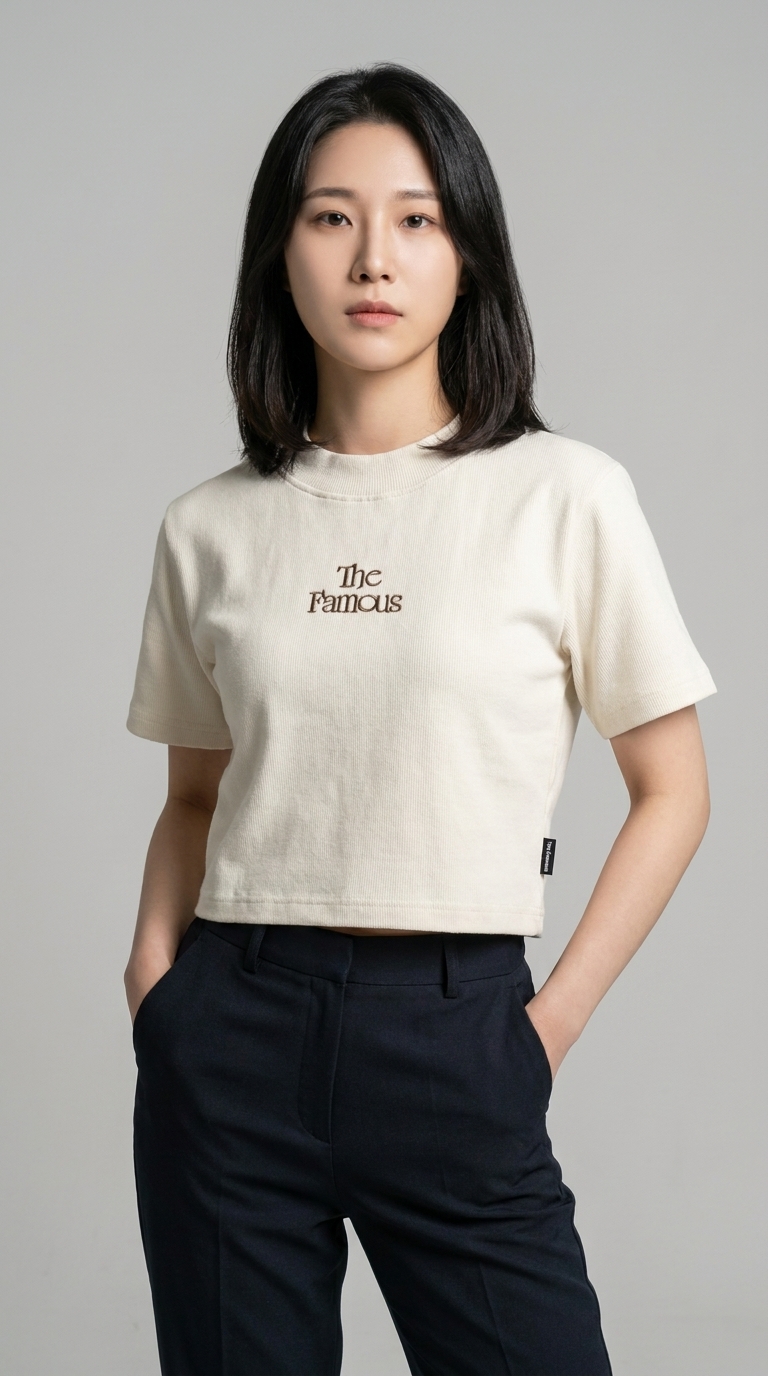
Click Generate with the prompt field empty and /api/prompt/auto-batch walks upstream, gathers every aiBrief it finds, and asks the configured LLM CLI to compose N pose-distinct prompts in a single call. So a 4-variant gen does not collapse to four "hand-on-hip" stances — the model rotates through an 8-stance pool so each variant gets its own pose. All upstream mediaId values are fed to Flow as IMAGE_INPUT_TYPE_REFERENCE inputs, so the character on the canvas is the character that actually shows up in the result.
There is no prompt-engineering required to get a usable first take. You connect nodes, click a button, four pose-distinct fashion-editorial frames come back. If you want to override, type your own prompt — but the empty-prompt path is the one you will reach for daily.
Layer 2 — Environment-aware variants
This is the part where the canvas earns its keep. Wire the same composition node into three downstream Image nodes, give each one a different scene context, click Generate on each. Same character, same product, three different worlds.

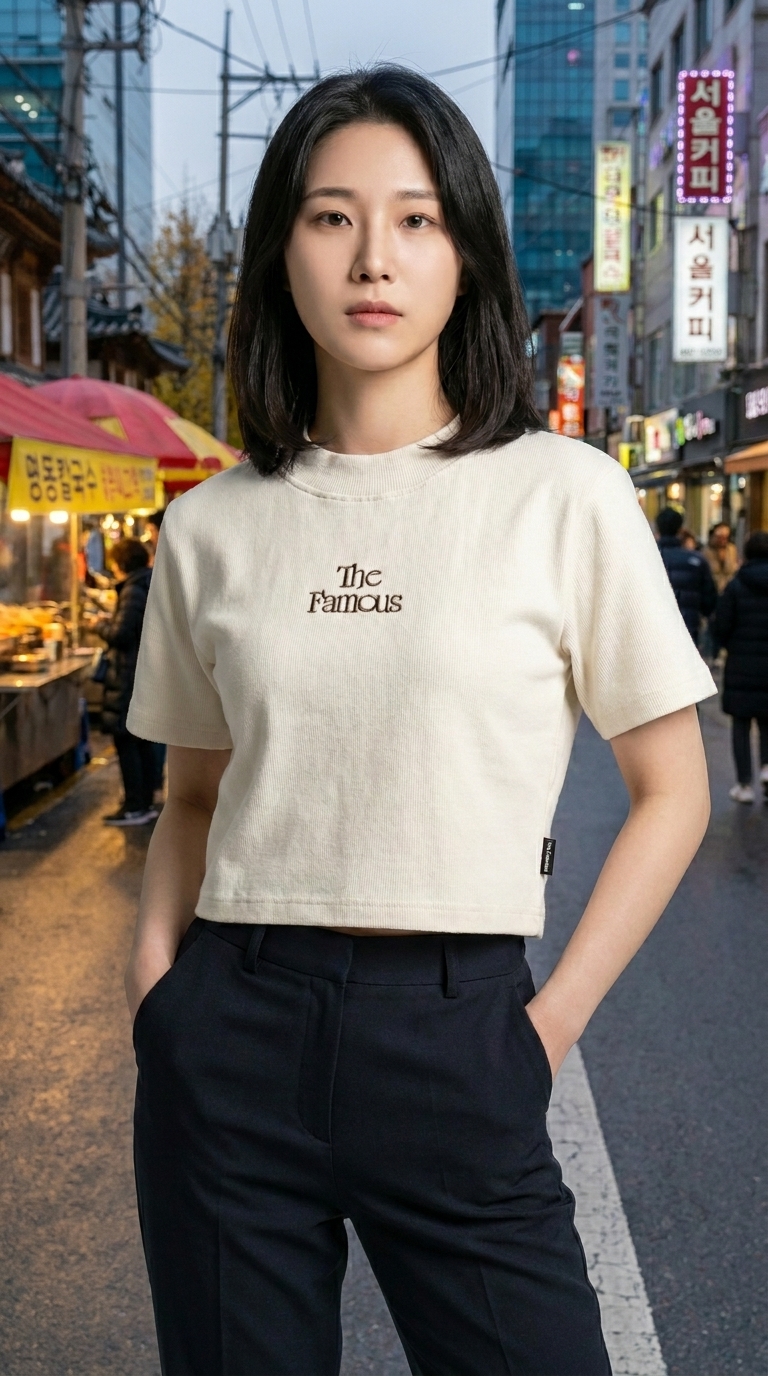
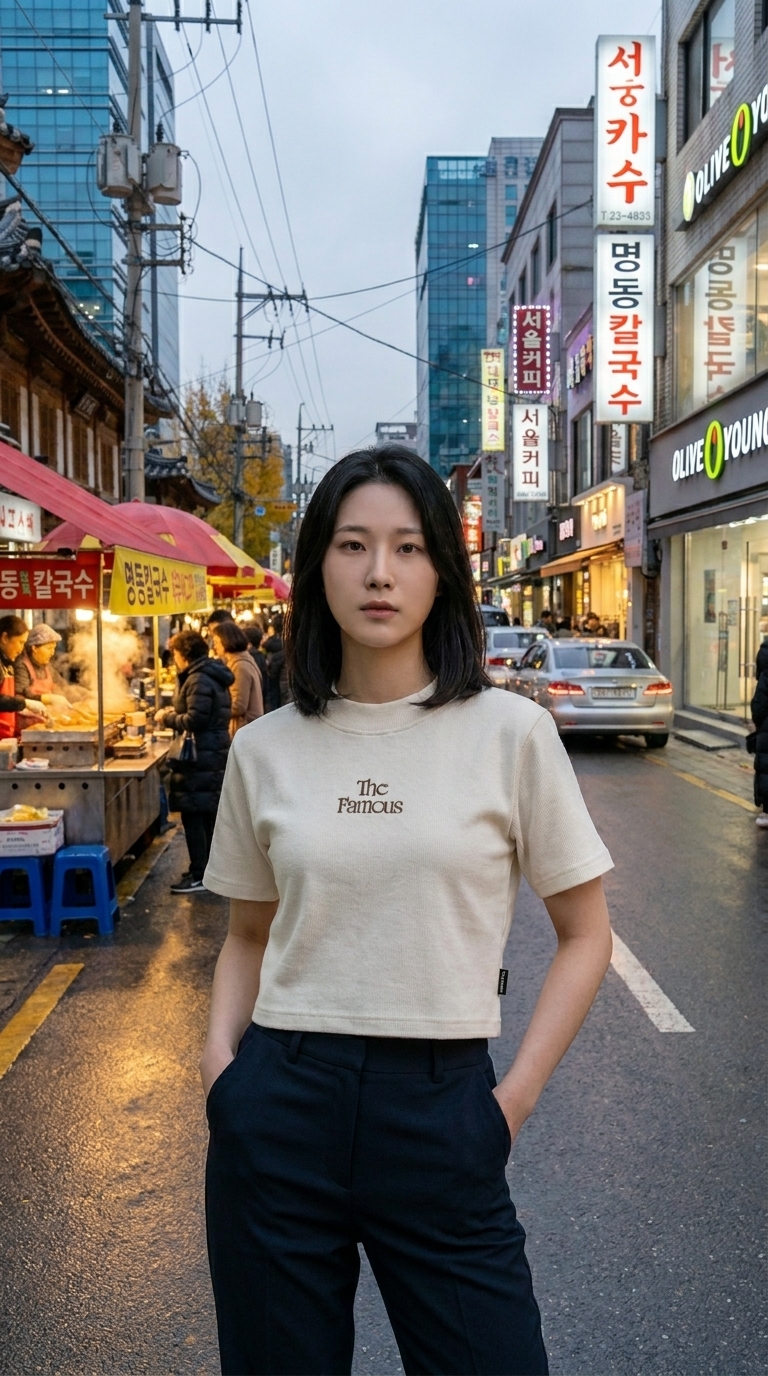
The auto-prompt synth detects scene context from each image's brief and switches motion vocabulary on its own — a studio shot picks up hand-on-hip, brush sleeve, head tilt motion, a street shot picks up half-step forward, hair tuck, glance over shoulder, hand in pocket, smirk, a beach shot picks up hair flutter in breeze, slow exhale, look toward horizon. There are no code branches behind that. The system prompt lists the vocab pools, the LLM picks the matching one from the keywords in the brief, and the variants come back environmentally coherent.
Re-using upstream nodes is what makes this fast. Nothing about the character or the product is restated. The brief flows. You only describe what is new — the world.
Layer 3 — Image to video via Veo 3.1 i2v
The third layer is where it goes from a photoshoot to a campaign. Drop a Video node, connect it to one of the variant images, click Generate, pick Camera = Static (locked-off, the e-commerce default — the product stays fully framed for the whole clip) or Dynamic (the synth picks a subtle dolly or pan based on the scene). If the upstream image has four variants, tick all four and the dispatcher batches one i2v op per variant in a single Flow call — four source stills become four distinct videos in one click.
The motion synth uses time-coded beats — 0–3s, 3–6s, 6–8s — so the model performs an editorial 2-to-3 pose-shift sequence inside the 8-second clip instead of standing like a frozen statue or breaking into an open-mouth smile that drifts the identity. The studio clip does half-step into a glance and a hair-tuck. The autumn clip does a pivot into a pocket and a camera smirk. The Seoul clip does a half-step into an over-shoulder glance and a hand in pocket. Each was a single click from the same upstream image.
The architecture in one diagram
FLOWBOARD is three processes on one machine and one persistent local database. No cloud. No multi-tenant. No bills.
┌──────────────────────┐    ┌────────────────────┐    ┌──────────────────────┐
│  Chrome MV3 ext      │◄───┤  FastAPI agent     ├───►│  SQLite (storage/)   │
│  - content script    │ WS │  127.0.0.1:8101    │    │  Board, Node, Edge,  │
│  - injected MAIN     │ ws │  + worker queue    │    │  Request, Asset,     │
│  - CDN URL allow     │9223│  + WS server :9223 │    │  Plan, ChatMessage   │
│  - Captcha bridge    │    │  + LLM CLI bridge  │    │                      │
└──────────────────────┘    └─────────┬──────────┘    └──────────────────────┘
                                      │
                                      ▼
                            ┌────────────────────┐
                            │  React + Vite      │
                            │  ReactFlow canvas  │
                            │  Zustand store     │
                            │  127.0.0.1:5173    │
                            └────────────────────┘
The frontend is Vite + React 18 + ReactFlow 12 + Zustand 5 with strict TypeScript. It renders the infinite canvas, dialogs, and sidebars; it never talks to Google Flow directly. The agent is FastAPI + SQLModel + SQLite running on 127.0.0.1:8101. It owns the board state, runs an in-process worker queue that proxies all generation through the extension, and shells out to whichever LLM CLI you have configured (Claude Code, Gemini, or Codex) for vision, auto-prompt, and planner synthesis. The extension lives on labs.google/fx/tools/flow, captures the reCAPTCHA token, and routes API calls over a localhost WebSocket on port 9223. Storage is local SQLite plus a storage/media/ folder for cached image and video bytes, lazy-fetched from Flow's signed CDN URLs and re-served so they outlive the one-hour signed URL TTL.
The agent test suite ships at 333 passing. The frontend builds clean under strict tsc.
Setup
You need Python 3.11, Node 20, Chrome, and one LLM CLI on PATH — Claude Code is the recommended default. You also need a Google Flow Pro or Ultra plan. Free and trial accounts cannot drive Veo 3.1 i2v, so FLOWBOARD will not work on them.
git clone https://github.com/crisng95/flowboard.git
cd flowboard
make install
make agent      # FastAPI on :8101
make frontend   # Vite on :5173
Then in Chrome, open chrome://extensions, switch on Developer mode, click Load unpacked, pick the extension/ folder, and visit labs.google/fx/tools/flow. The extension's icon turns coloured once it captures a fresh token. Open http://localhost:5173, drop a Character node, drop a Visual asset, drop an Image, wire them up, click Generate. The full walkthrough at the top of this post is about 15 minutes of clicking on a fresh board.
If you would rather drive your AI auto-prompt through Gemini or Codex, switch via the 🤖 Provider chip in the top-right toolbar. Per-feature test buttons run a small ping per feature and gate Apply changes until all three pass green — you do not get to silently break vision while switching auto-prompt.
Try FLOWBOARD
The repository is at github.com/crisng95/flowboard. MIT license, local-only, single-user — your data and your generations stay on your laptop. If you want the linear, narrative-driven sibling for YouTube channels and multi-scene story videos, read our companion post on FLOW KIT — same Chrome-extension bridge, same approach to reference consistency, very different surface.
Both projects live under the ISEMI open-source umbrella — head to the homepage to see what else we are shipping in this space. If you build a product campaign or a storyboard with FLOWBOARD, drop the result in our shared community on Facebook or open an issue on the repo. The next round of improvements is driven by what real campaigns run into in production.